
Framer Integration
Connect your Framer website with RankHit using the Framer Server API
Framer Integration Setup
RankHit syncs articles to a Framer CMS collection with the Framer Server API. The article body is synced to the Content rich text field. If an article has a YouTube video, RankHit also syncs the YouTube link to the Video URL field so Framer can render it with a YouTube component.
RankHit only supports editable Framer collections owned by the project. Synced collections connected to external sources are managed by those sources, so RankHit does not create, update, or publish articles into them.
Create The Integration
- Create or copy the Framer Server API key from your Framer project settings.
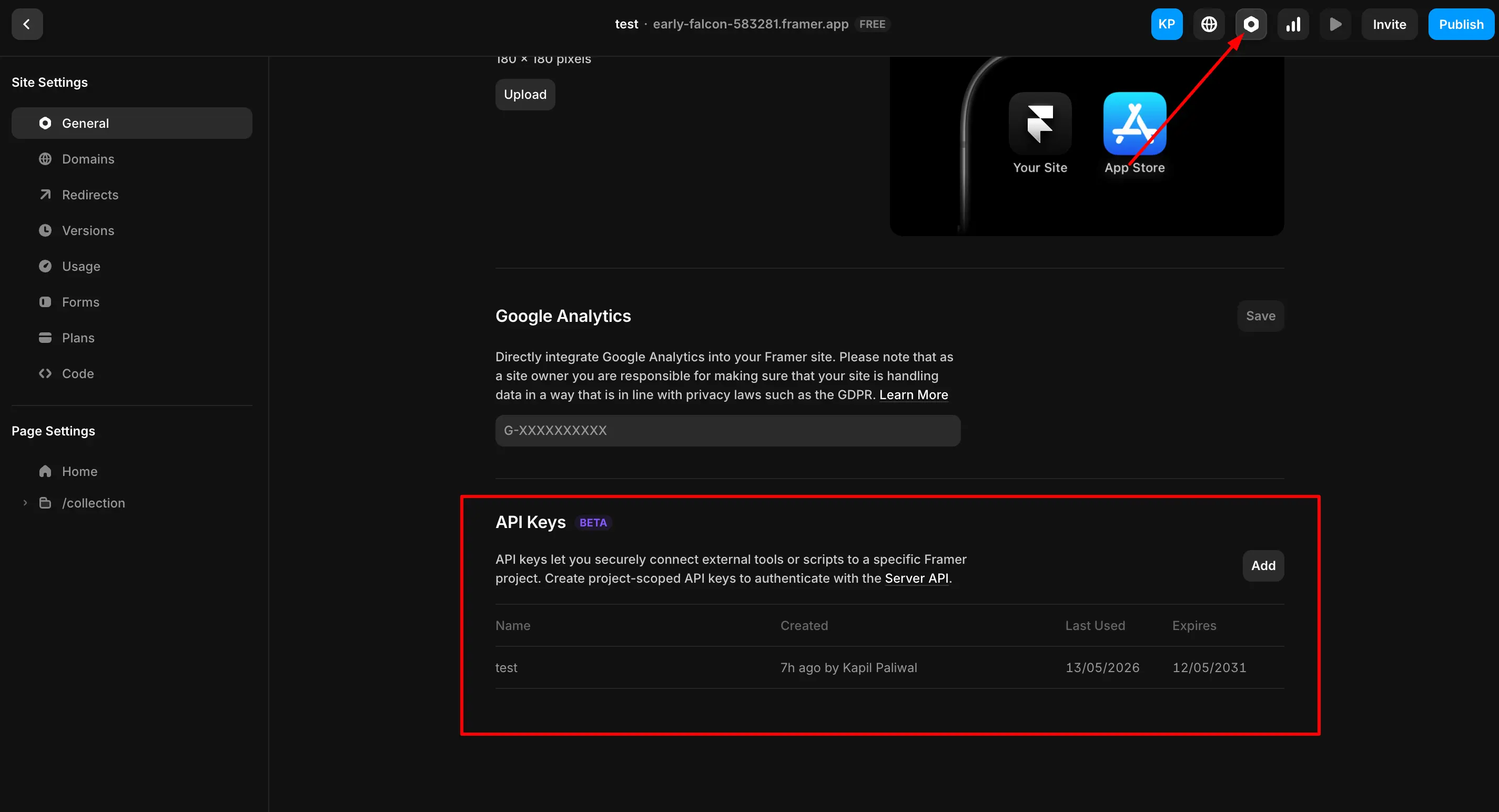
- Open RankHit and go to Integrations.
- Create a new Framer integration.
- Enter the framer.com project URL and Framer Server API key in RankHit.
- Choose whether RankHit should create a new collection or use an existing editable project-owned collection.
- If using an existing collection, map Title to a text field and Content to a rich text field.
- Save the integration, then publish or re-publish an article from RankHit.
RankHit automatically creates a RankHit Article ID field in the selected Framer collection. Keep this field in the collection and do not remove it, because RankHit uses it to update the correct CMS item on future syncs. It is not configurable during setup.
Connect Framer Pages
- Open the Framer project used in the integration.
- Open the CMS collection selected during setup.
- Connect the blog listing and blog detail pages to that CMS collection.
- Render the Content rich text field on the article detail page.
- Set the RankHit Main Blog Address to the correct URL route where article pages live, for example https://example.app/blog.
- Use the Server API integration for linked Table of Contents scrolling. Legacy plugin syncs need plugin-side scroll support before linked Table of Contents items can scroll reliably.
- Add a YouTube component on the article detail page.
- Bind the YouTube component URL setting to the Video URL CMS field.
- Set the YouTube component visibility to show only when Video URL is set.
- Publish the Framer site.
Framer does not render raw YouTube iframes inside CMS rich text as playable videos. Framer's official CMS video setup uses a plain text Video URL field connected to a YouTube, Vimeo, or Video component. Read Framer's guide here.
What Gets Synced
- RankHit Article ID, created automatically in Framer
- Title
- Content rich text
- Featured image
- Meta description
- CreatedAt
- Status
- Author
- Tags
- Video URL when the article contains a YouTube video
Articles without a YouTube video sync an empty Video URL. Use Framer visibility conditions so the YouTube component is hidden when Video URL is empty.
Table of Contents links are generated only when Main Blog Address is set to the Framer collection route. If Main Blog Address is empty, the Table of Contents syncs as a plain text list so Framer does not receive broken in-page links.
Framer removes heading IDs from CMS rich text when rendering the live page. The Server API integration installs RankHit's Framer scroll code so linked Table of Contents items can scroll to the matching headings. Legacy plugin syncs keep their existing content payload unless the plugin adds equivalent support.
The RankHit Article ID field is used for automated Framer publishing. If it is removed from the collection, RankHit will need to recreate it before articles can sync reliably.
Troubleshooting
Synced collection is missing
Choose an editable Framer collection owned by the project. Collections synced from external sources are controlled by those sources and are not available for RankHit publishing.
Video URL is empty
Re-publish an article that has a YouTube link or YouTube iframe in the RankHit article content.
Video URL exists but no video appears
Add a Framer YouTube component to the CMS detail page, bind its URL to Video URL, and publish the Framer site again.
Table of Contents is plain text
Set Main Blog Address in RankHit to the correct article route, such as https://example.app/blog, then re-sync the article. If you are using legacy plugin sync, switch to the Server API integration or update to a plugin version that supports RankHit's Table of Contents scroll code.
Table of Contents changes the URL but does not scroll
Re-publish with the Server API integration so RankHit can install the Framer scroll code and deploy it with the site. Framer strips heading IDs from CMS rich text, so hash links need that code to scroll on the live page.
Articles do not appear
Make sure the Framer pages are connected to the CMS collection selected during integration setup.
Sync or publish fails
Verify the Framer project URL, Server API key, CMS collection, and selected publish mode in the integration settings.